Adding the chat widget to your website
Where the snippet goes, what it does, and how to check it arrived.
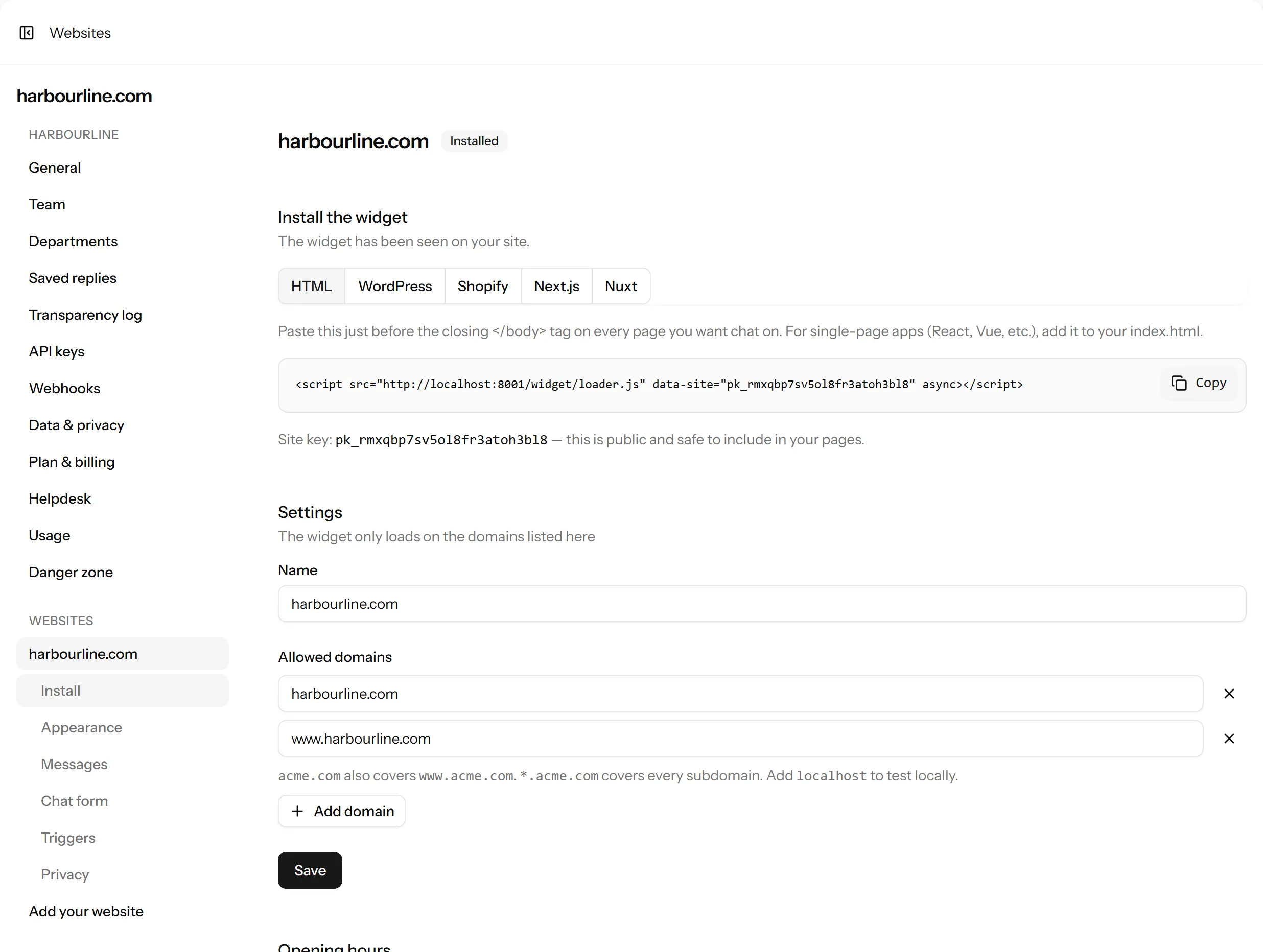
One script tag. No package to install, no build step, and nothing to configure in your code.
Getting the snippet
Settings → Websites → your site → Install. The snippet already has your key in it, so copy it from there rather than typing it out.
<script src="https://widget.talkfront.app/loader.js" data-site="pk_live_…" async></script>It goes just before the closing </body> tag, on every page you want chat on.
For a single-page app, it goes in the one index.html that serves everything.
The framework guides have the exact file for React, Vue, Svelte, Astro, Laravel, WordPress and Shopify.
What the tag actually does
It loads a small script that draws the launcher. That is all, until somebody clicks: the chat window itself is an iframe that is not created until it is opened.
Two consequences worth knowing:
- It cannot break your layout. The chat runs on its own origin, so your CSS cannot reach into it and its styles cannot leak out onto your page.
- It costs almost nothing to have on a page nobody chats on. The heavy part is not loaded until it is needed.
The site key is public
It ships in your HTML where anyone can read it, and that is by design. What protects your account is the domain allowlist, rate limiting, and the fact that a key on its own cannot read your conversations.
You do not need to hide it, and you should not put it in an environment variable and feel safer for it.
Checking it worked
Load a page on your real site and look for the launcher. The install screen also tells you: once the widget has loaded anywhere on your domain, it says so at the top.
If nothing appears, work through the widget isn’t appearing on my site. The first cause on that list accounts for most of them.
Last updated 22 September 2026.