Your first conversation: a walkthrough
From an empty workspace to a chat you have answered, in about ten minutes.
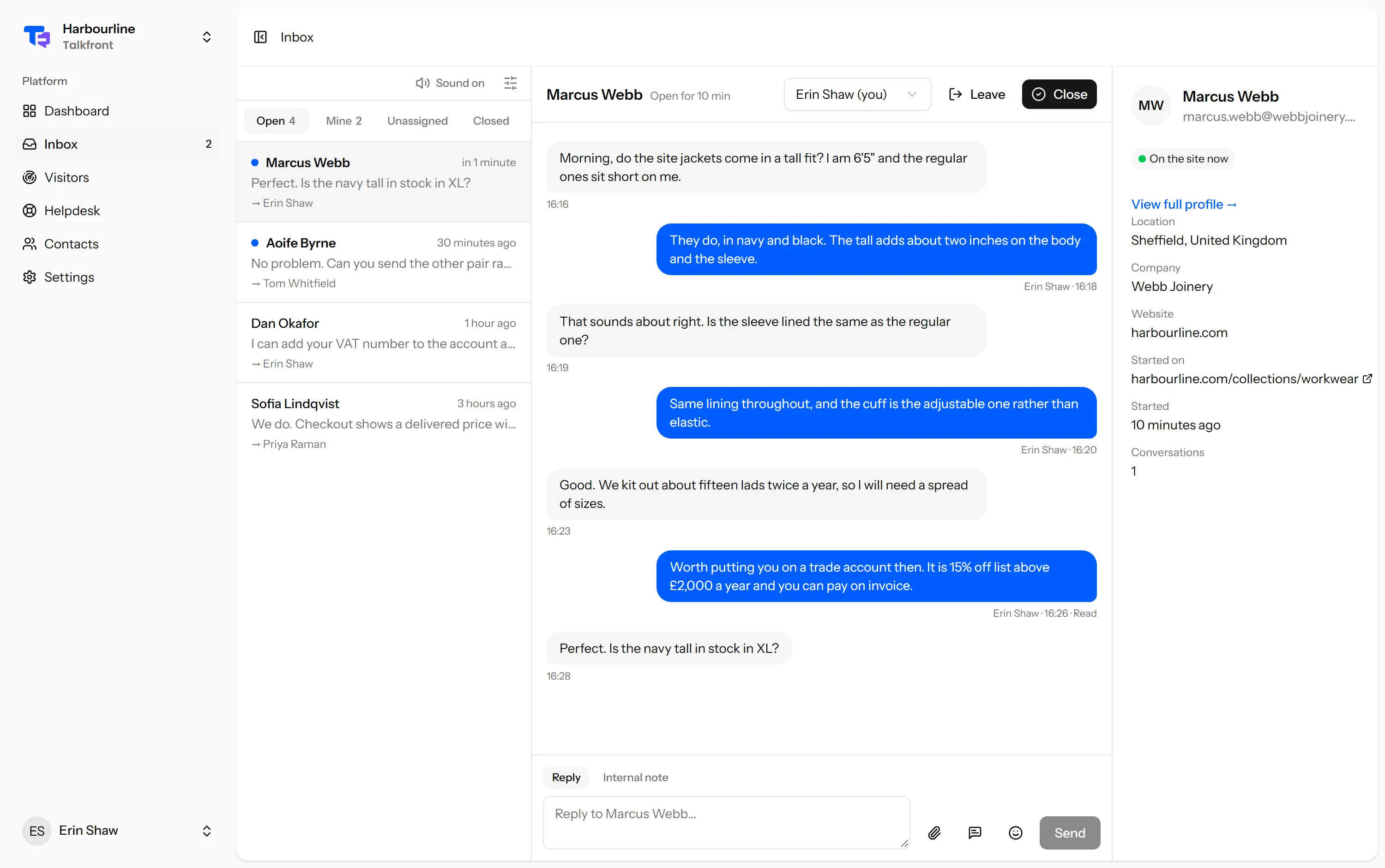
The quickest way to understand Talkfront is to be your own first customer. This walks through it end to end.
1. Add your website
A website is the thing the chat window sits on. You can have more than one, and each gets its own settings and its own key.
Go to Settings → Websites → Add your website, give it a name, and list the
domains it runs on. The domain list matters more than it looks: the widget
refuses to load anywhere that is not on it. If you are testing locally, add
localhost too.
2. Paste one line into your site
The install screen has a snippet with your key already in it. It goes just
before the closing </body> tag on every page you want chat on:
<script src="https://widget.talkfront.app/loader.js" data-site="pk_live_…" async></script>Nothing to compile, no package to install. If you use React, Vue, WordPress or Shopify, the framework guides say exactly where it goes.
3. Open your own website
Load the page in a normal browser tab. The launcher appears in the corner you chose. Open it and send yourself a message, as a visitor would.
If nothing appears, the widget isn’t appearing article covers the three usual reasons, and the first one is almost always the domain list.
4. Answer it
Back in Talkfront, the chat is in your Inbox, under Open. Click it and reply.
Two things happen the moment you send that first reply, and neither needs you to do anything:
- The chat is assigned to you. Whoever answers first picks it up, so nobody has to claim work before doing it. You can hand it to someone else afterwards.
- The visitor sees it immediately, over a live connection rather than by refreshing. Under your reply you will see whether it was delivered and whether they have read it.
5. Close it
Close puts the conversation away. It is not deletion: if the visitor writes again, it reopens with the whole history intact, and whoever picks it up can read what was said before.
What to do next
- Invite your team, so chats do not wait on one person being free.
- Run through the checklist before you put this in front of real customers.
- Tell Talkfront who your logged-in users are, so an agent can see who they are speaking to without asking.
Last updated 22 September 2026.